How to Use Dessa AI: Live Talk and Text to Speech Guide
How to use Dessa AI step by step - start a real-time voice chat in Live Talk, turn a script into a WAV file with Text to Speech, and pick a plan.
By Dessa AI Team · Updated
How to Use Dessa AI in 5 Steps
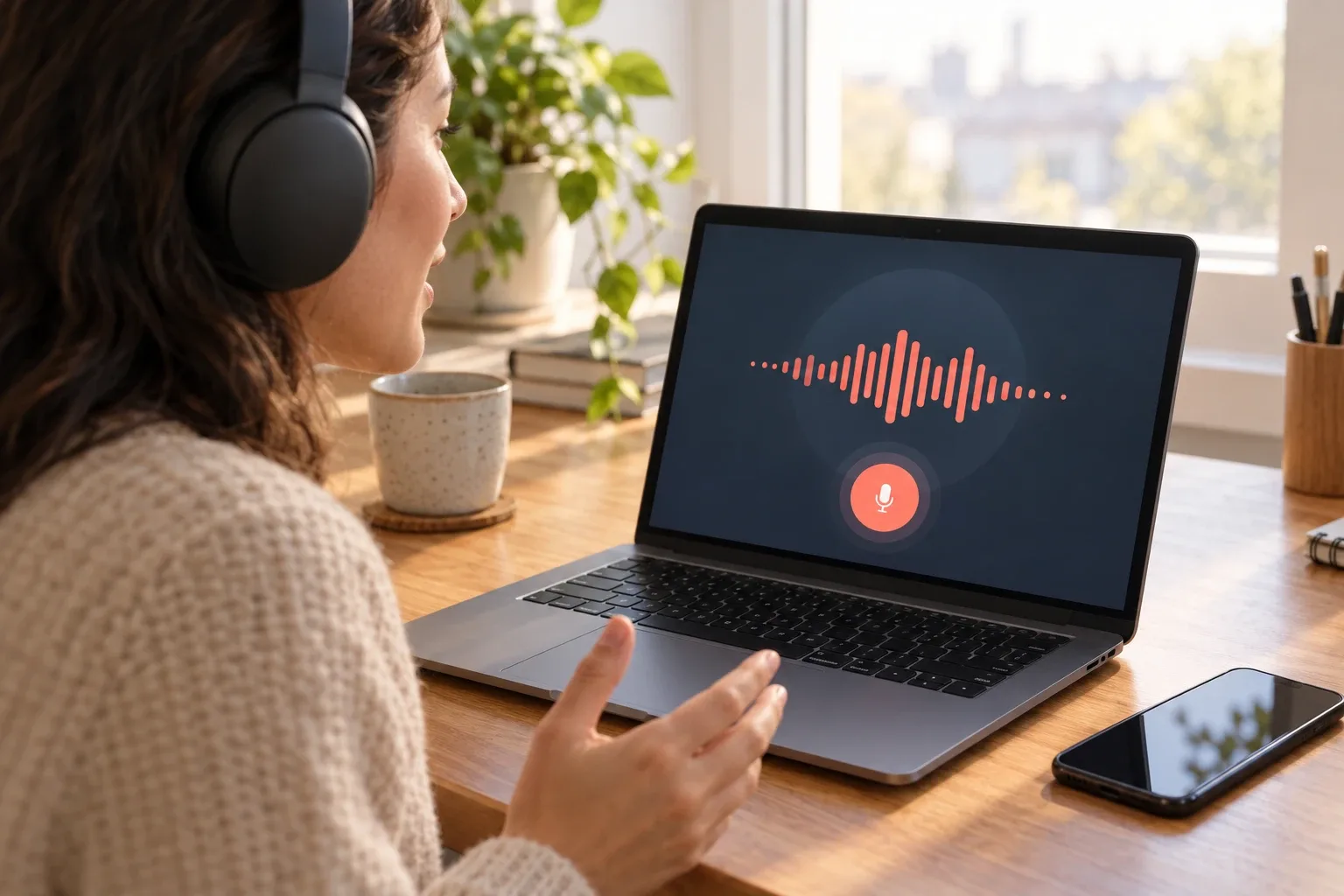
Here is how to use Dessa AI in short: sign in, add credits, pick a tool, choose a voice, then talk or generate. Dessa AI is a browser voice studio with two tools, Live Talk for real-time voice chat and Text to Speech for scripts, so how to use Dessa AI depends on which tool you open. Nothing needs installing to learn how to use Dessa AI.
| Step | How to use Dessa AI | Where |
|---|---|---|
| 1 | Sign in with Google or email | Log in, top right |
| 2 | Add credits with a plan or a credit pack | Pricing |
| 3 | Open Live Talk or Text to Speech | Studio |
| 4 | Pick a voice, a mode or a language | Studio settings |
| 5 | Press Start talking or Generate speech | Studio |
Dessa AI has no free plan, so how to use Dessa AI always starts with credits from a subscription or a credit pack. If a call cannot connect or a script fails, the credits come back automatically.
How to Use Dessa AI Live Talk
Live Talk is how to use Dessa AI for a spoken conversation. The AI voice listens while it speaks, so you can cut in at any time, and the steps below are how to use Dessa AI for your first call.
Open Live Talk
The first step in how to use Dessa AI Live Talk is to go to the studio and stay on the Live Talk tab.
Pick a voice, a mode and a language
Choose one of 22 voices. Modes are Casual chat, Language tutor, Mock interview, Storyteller and Custom setup. Language can match yours or stay fixed on Chinese (Mandarin), English, Japanese, Korean, French, German, Spanish or Portuguese.
Press Start talking
Allow the microphone and say hello. Live captions show what you and Dessa say.
Talk, interrupt or mute
Interrupt any time, or mute the microphone while you think.
End the call
Press End call. Unused prepaid time goes back to your balance.
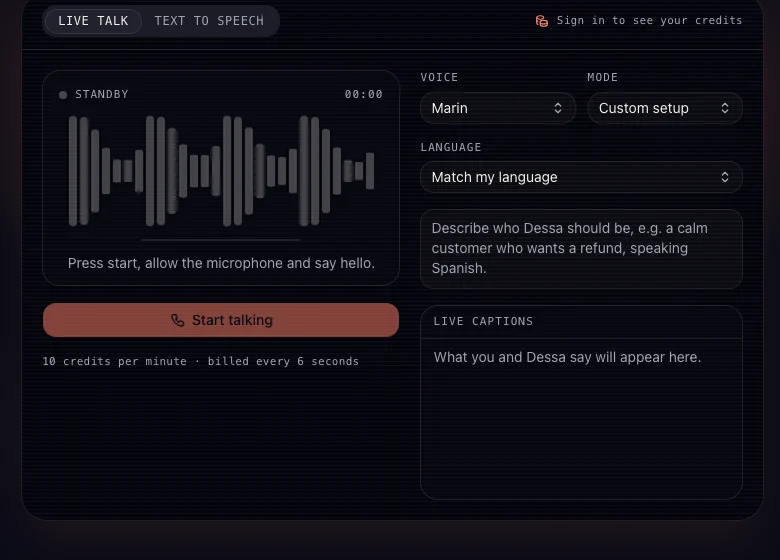
If you want to know how to use Dessa AI for role-play, Custom setup takes up to 600 characters of instructions. Live Talk costs 10 credits per minute, counted every 6 seconds, with at least 15 seconds per call. Credits are reserved in 30-second blocks ahead of use. Paid users can also ask Dessa to look something up on the web during a call; each search costs 2 credits.
How to Use Dessa AI Text to Speech
Text to Speech is how to use Dessa AI for narration, course audio, podcast intros or ad reads.
Switch to Text to Speech
The first step in how to use Dessa AI Text to Speech is to open the Text to Speech tab in the studio.
Paste your script
Scripts can be up to 2,000, 3,500 or 5,000 characters, depending on your plan.
Pick a voice and a language
Choose one of 24 voices. The language is detected from the script, with 39 languages supported.
Press Generate speech
The studio shows the cost first: 1 credit per 160 characters.
Play and download
Download the result as a 44.1 kHz WAV file. It is also saved privately under Settings, Files, where you can delete it.
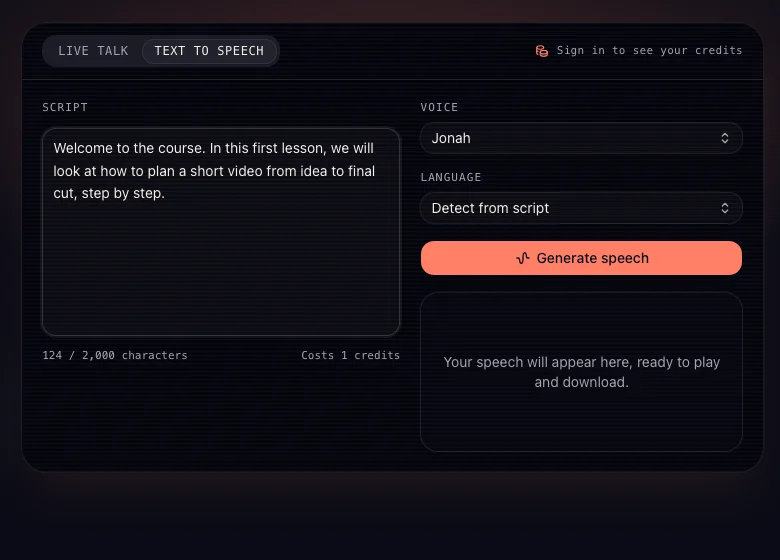
This is also how to use Dessa AI for client work: speech you generate with paid credits can be used commercially, for example in YouTube videos, podcasts, courses and ads, with no watermark.
How to Use Dessa AI Credits and Plans
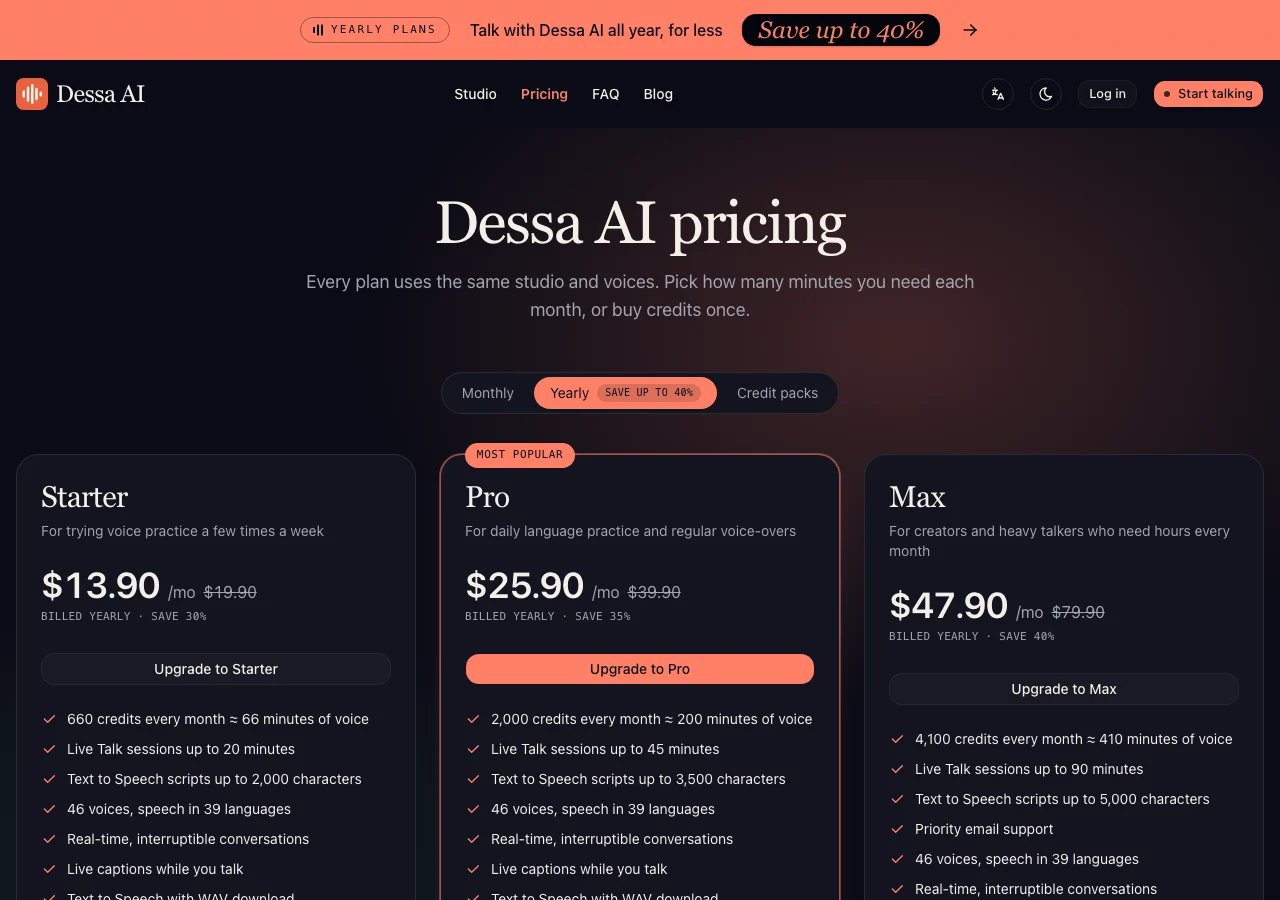
How to use Dessa AI is the same on every plan: every plan uses the same studio and voices, and plans differ in monthly credits and limits. 10 credits buy about one minute of Live Talk.
| Plan | Monthly / yearly price | Credits per month | Longest call | Longest script |
|---|---|---|---|---|
| Starter | $19.90 / $13.90 per month | 660 (≈ 66 min) | 20 min | 2,000 characters |
| Pro | $39.90 / $25.90 per month | 2,000 (≈ 200 min) | 45 min | 3,500 characters |
| Max | $79.90 / $47.90 per month | 4,100 (≈ 410 min) | 90 min | 5,000 characters |
Credit packs are a one-time payment: 200 credits for $9.90, 500 for $14.90, 1,500 for $29.90 or 3,200 for $59.90. Pack credits never expire and are used after your monthly credits; subscription credits expire at the end of each month. See pricing to choose how to use Dessa AI credits: monthly, yearly or once.
Tips on How to Use Dessa AI
These tips on how to use Dessa AI follow the modes built into the studio:
- For language practice, pick Language tutor and fix the language you are learning.
- For interviews, pick Mock interview and answer out loud as you would on the day.
- For role-play, use Custom setup and describe the person Dessa should play.
- For long scripts, check your plan limit before you paste.
The models behind Live Talk and Text to Speech are listed in the Dessa AI FAQ. Read what Dessa voice is and how it compares in our best AI voice model guide.
FAQ
How to use Dessa AI for free?
Dessa AI has no free plan. How to use Dessa AI is always with credits from a subscription or a credit pack; the smallest pack is 200 credits for $9.90.
How to use Dessa AI on a phone?
Dessa AI runs in the browser on desktop and mobile. How to use Dessa AI on a phone is the same: open the studio, allow the microphone and press Start talking.
How to use Dessa AI to practise a language?
This is how to use Dessa AI as a speaking partner: choose Language tutor in Live Talk and set the language you are learning. Every Live Talk voice can speak Chinese (Mandarin), English, Japanese, Korean, French, German, Spanish and Portuguese.
How to use Dessa AI audio commercially?
That is how to use Dessa AI audio in paid projects: speech generated with paid credits can be used in commercial work with no watermark. You are responsible for the script, and you may not use Dessa AI to impersonate a real person.
Is my voice private when I use Dessa AI?
Privacy is part of how to use Dessa AI: your microphone is only streamed while a call is on air, and Dessa AI does not keep recordings of your conversations. Captions stay in your browser tab and disappear when you leave.
What happens if a call or script fails?
The credits are returned automatically, so you can learn how to use Dessa AI without losing credits to errors. Unused prepaid call time also goes back to your balance when a call ends.