How to Use AI Voice: Talk, Narrate and Create in 2026
How to use AI voice in 2026 - hold a real-time AI voice chat, turn a script into an AI voice WAV file, pick the right AI voice and use it commercially.
By Dessa AI Team · Updated
How to Use AI Voice: The Short Answer
To use AI voice, first decide whether you want to talk or to listen. If you want a conversation, open an AI voice chat, allow the microphone and speak. If you want a recording, paste a script into an AI voice text to speech tool and download the audio. Both kinds of AI voice run in the browser in the Dessa AI studio, so you can try either without installing anything.
An AI voice is a computer-generated voice that sounds like a person. In 2026 an AI voice can hold a live conversation, answer while you interrupt, and read long scripts in dozens of languages. This guide shows how to use AI voice for each job, how to choose an AI voice, and the rules for using the audio in your own work.
Two Kinds of AI Voice
Every AI voice tool does one of two things: it talks with you, or it reads for you. Pick the kind of AI voice first, because the tools, prices and limits are different.
| AI voice chat | AI voice text to speech | |
|---|---|---|
| You give it | Your voice, through the microphone | A written script |
| You get | A spoken reply in real time | An audio file you can download |
| Best for | Language practice, interview prep, thinking out loud, chatting | Narration, course audio, podcast intros, ad reads, accessibility |
| Dessa AI tool | Live Talk, 22 voices | Text to Speech, 24 voices |
| Languages | 8 languages, or match the one you speak | 39 languages, detected from the script |
| Price on Dessa AI | 10 credits per minute | 1 credit per 160 characters |
If you are not sure which kind you need, ask what should exist at the end. A conversation leaves nothing behind except what you learned. Text to speech leaves a WAV file you can edit into a video. For a wider view of the market, see our best AI voice chat apps and best text to speech tools guides.
How to Use AI Voice for Conversation
AI voice chat is how to use AI voice as a speaking partner. On Dessa AI the voice listens while it talks, so you can cut in at any time, just like a phone call.
Open Live Talk
Go to the studio. The Live Talk tab is the voice chat.
Pick an AI voice and a mode
Choose one of 22 voices, then a mode: Casual chat, Language tutor, Mock interview, Storyteller or Custom setup.
Set the language
Let it reply in the language you speak, or fix it to Chinese (Mandarin), English, Japanese, Korean, French, German, Spanish or Portuguese.
Press Start talking
Allow the microphone and say hello. Live captions show what you and Dessa say.
Interrupt, mute or end the call
Speak over it to change direction, mute while you think, and press End call when you are done. Unused prepaid time goes back to your balance.
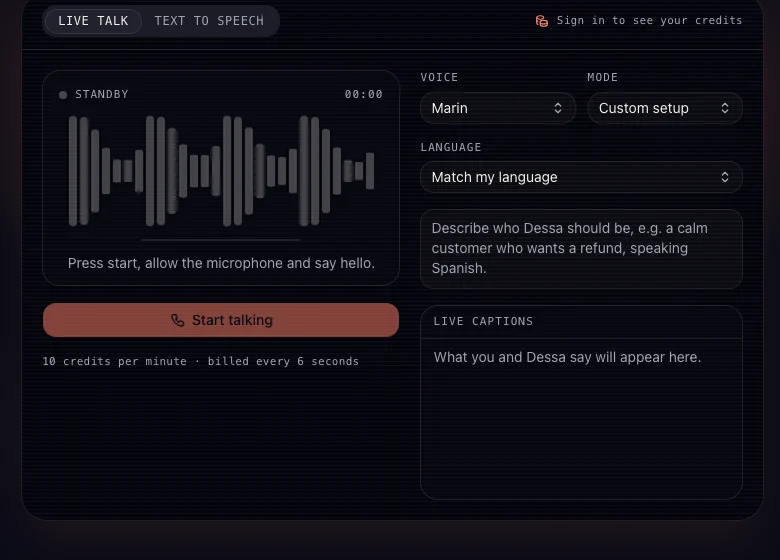
Custom setup is how to use AI voice for role-play. Describe a person, a situation and a language, for example a calm customer who wants a refund, speaking Spanish, and Dessa plays that part. Paid users can also ask Dessa to look something up on the web during a call; each search costs 2 credits.
How to Use AI Voice for Narration and Voiceovers
Text to speech is how to use AI voice when you need a file. You write the words, the voice reads them, and you keep the audio.
Switch to Text to Speech
Open the Text to Speech tab in the studio.
Paste your script
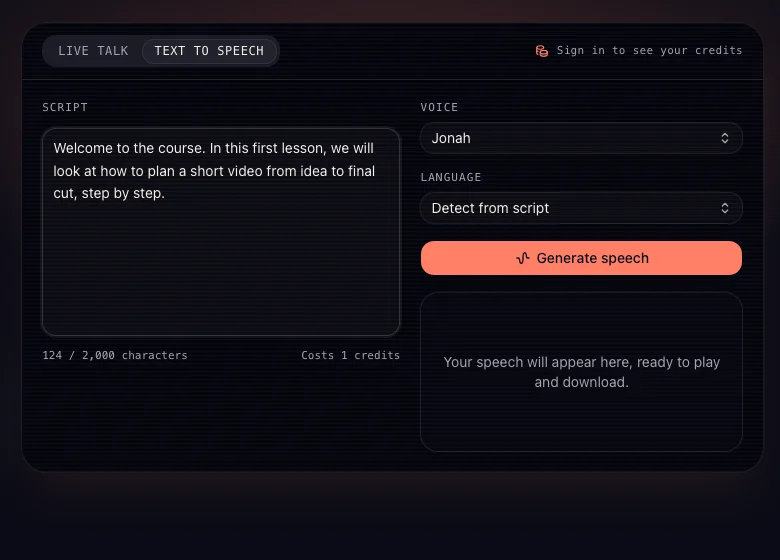
A script can be up to 2,000, 3,500 or 5,000 characters, depending on your plan. Split longer scripts into parts.
Pick an AI voice
Choose one of 24 text to speech voices. It reads the language it detects in the script, from 39 languages.
Press Generate speech
The studio shows the cost before you start: 1 credit per 160 characters.
Play and download
Listen, then download the audio as a 44.1 kHz WAV file. It is also saved privately under Settings, Files.
Write the script for the ear, not the eye. Short sentences, spelled-out numbers and commas where you would breathe help any voice sound natural. Generate one paragraph first, listen, and fix the script before you generate the whole thing.
AI Voice Use Cases
These are the jobs people use AI voice for on Dessa AI, and the setting that fits each one.
| Use case | AI voice tool | How to set it up |
|---|---|---|
| Practise a language out loud | Live Talk | Language tutor mode, language fixed to the one you are learning |
| Rehearse a job interview | Live Talk | Mock interview mode; answer as you would on the day |
| Role-play a hard conversation | Live Talk | Custom setup with the person and situation described |
| Think through an idea by talking | Live Talk | Casual chat mode |
| Narrate a YouTube video | Text to Speech | One paragraph per generation, then edit the WAV files together |
| Course and training audio | Text to Speech | Pick one voice and keep it for the whole course |
| Podcast intro or ad read | Text to Speech | Short script, try two or three voices and compare |
| Listen instead of read | Text to Speech | Paste the text and play it back |
How to Choose an AI Voice
Choose an AI voice by the listener, not by your own taste. A course for a British audience may suit a British voice; a casual video may suit a relaxed North American one.
- Accent. The Live Talk voices include neutral, North American, British, Irish, Australian, Southern U.S. and Filipino English, plus French, German, Brazilian Portuguese, Japanese, Korean and Hindi voices.
- Language. In Live Talk every voice can speak all eight chat languages. In Text to Speech the voice follows the language of your script.
- Consistency. Keep one voice per project, so a series or a course sounds like the same person all the way through.
- Test with your own words. A sample sentence tells you little; generate your real opening line in two voices and compare.
AI Voice Rules: Commercial Use, Consent and Privacy
On Dessa AI, AI voice audio generated with paid credits can be used in commercial work such as YouTube videos, podcasts, courses and ads, with no watermark. You are responsible for the script, and you may not use it to impersonate a real person.
Your microphone is only streamed while a call is on air, and Dessa AI does not keep recordings of your conversations. Text to Speech files are stored privately in your account and you can delete them at any time. The models behind each tool are listed in the Dessa AI FAQ.
To compare the AI voice models themselves, read our best AI voice model guide. For a click-by-click tour of the studio, see how to use Dessa AI, and check pricing for plans and credit packs.
FAQ
What is AI voice?
An AI voice is a computer-generated voice that sounds like a person. A voice chat answers you out loud in real time; a text to speech tool reads a script and saves it as audio.
How do I use AI voice for free?
Dessa AI has no free plan; every voice on Dessa AI is paid with credits from a subscription or a credit pack. The smallest pack is 200 credits for $9.90, which buys about 20 minutes of Live Talk.
Can I use AI voice on my phone?
Yes. Dessa AI runs in the browser on desktop and mobile, so you can use Live Talk and Text to Speech on a phone without an app.
Can I use AI voice audio commercially?
Yes. AI voice audio you generate with paid credits on Dessa AI can be used in commercial work with no watermark. You may not use it to impersonate a real person.
Which languages can an AI voice speak?
On Dessa AI, Live Talk speaks Chinese (Mandarin), English, Japanese, Korean, French, German, Spanish and Portuguese. Text to Speech reads 39 languages and detects the language from the script.
Does Dessa AI record my voice chats?
No. The microphone is only streamed while a call is on air, Dessa AI does not keep recordings, and captions disappear when you leave the page.